
OpenClaw Quick Switch to Cloudwise MaaS
Install OpenClaw and connect to 570+ AI models including Claude, GPT, Grok, and more
OpenClaw is a powerful AI assistant platform that supports multiple AI models and chat channels. Through Cloudwise MaaS, you can easily connect OpenClaw to 570+ AI models including Claude, GPT, Grok, Doubao, Qwen, GLM, Kimi, and more.
Table of Contents
Install OpenClaw
Execute the following command to install OpenClaw.
# MAC or Linux
curl -fsSL https://openclaw.ai/install.sh | bash

# Windows
iwr -useb https://openclaw.ai/install.ps1 | iex

# Important: After the script installs Git, it proceeds to install OpenClaw. Press Ctrl+C immediately to interrupt the process; otherwise, the new version (with bugs) will be installed, and the gateway may not install smoothly.

# Then, install the specific version manually:
npm install -g openclaw@2026.2.26
Note: Version 2026.3.2 has an installation bug, so this guide uses version 2026.2.26.
Reference: https://github.com/openclaw/openclaw/issues/33633
Version 2026.3.2 restricts many agent features by default. If you insist on installing it, you will need to adjust some permissions.
Modify openclaw.json tools setting as shown below:
{
  "tools": {
    "profile": "full",
    "sessions": {
      "visibility": "all"
    }
  }
}

# Or execute via command line:
openclaw config set tools '{"profile":"full","sessions":{"visibility":"all"}}' > /dev/null
Initial Configuration (Onboarding)
Complete the OpenClaw configuration based on the prompts. Refer to the settings below:
| Prompt | Configuration Action |
|---|---|
Command: openclaw onboard | Execute manually to generate the config file. |
| "I understand this is personal-by-default... Continue?" | Select "Yes" |
| QuickStart (Configure details later via openclaw configure.) | Select "QuickStart" |
| Model/auth provider | Select "Skip for now" (can be configured later). |
| Filter models by provider | Select "All providers" |
| Default model | Use default configuration. |
| Select channel (QuickStart) | Select "Skip for now" (can be configured later). |
| Configure skills now? (recommended) | Select "No" (can be configured later). |
| Enable hooks? | Select "Skip for now". (Press Spacebar to select options, then Enter to proceed). |
| How do you want to hatch your bot? | Select "Do this later". |
Switch to Cloudwise MaaS: Claude Models
Supported Models: Full series of Claude models.
Test Key: ak_f58064831857443bbfc75b0b4fb9d9c3
Action: Run the script switch_maas_claude.sh and follow the prompts.
#!/bin/bash

MODELS=(
  "claude-sonnet-4-5-20250929"
  "claude-sonnet-4-6"
  "claude-haiku-4-5-20251001"
  "claude-opus-4-5-20251101"
  "claude-opus-4-6"
)

DEFAULT_MODEL_INDEX=1
DEFAULT_MODEL=${MODELS[$DEFAULT_MODEL_INDEX]}

echo "🦞 OpenClaw Configuration Switch Wizard (Anthropic)"
echo "--------------------------------"

echo "Please select the model to use:"
PS3="Enter the number (default $DEFAULT_MODEL): "
select MODEL_CHOICE in "${MODELS[@]}"; do
    if [ -n "$MODEL_CHOICE" ]; then
        SELECTED_MODEL="$MODEL_CHOICE"
        break
    elif [ -z "$REPLY" ]; then
        SELECTED_MODEL="$DEFAULT_MODEL"
        break
    else
        echo "❌ Invalid selection, please try again."
    fi
done

echo "✅ Model selected: $SELECTED_MODEL"
echo "--------------------------------"

read -p "Please enter your API Key: " -s API_KEY
echo ""

if [ -z "$API_KEY" ]; then
  echo "❌ Error: API Key cannot be empty."
  exit 1
fi

echo "🔒 Key received, processing..."

CURRENT_WS=$(openclaw config get agents.defaults.workspace 2>/dev/null || echo "")
if [ -z "$CURRENT_WS" ]; then
  CURRENT_WS="$HOME/.openclaw/workspace"
  echo "ℹ️ No existing workspace detected, using default: $CURRENT_WS"
else
  echo "ℹ️ Retaining existing workspace: $CURRENT_WS"
fi

MODEL_PATH="anthropic/$SELECTED_MODEL"
echo "⏳ Updating configuration..."

openclaw config set auth.profiles.anthropic:default '{"provider":"anthropic","mode":"api_key"}' > /dev/null
PAYLOAD_MODELS="{\"baseUrl\":\"https://api.cloudwise.ai/api\",\"apiKey\":\"$API_KEY\",\"api\":\"anthropic-messages\",\"models\":[{\"id\":\"$SELECTED_MODEL\",\"name\":\"$SELECTED_MODEL\"}]}"
openclaw config set models.providers.anthropic "$PAYLOAD_MODELS" > /dev/null
PAYLOAD_AGENTS="{\"model\":{\"primary\":\"$MODEL_PATH\"},\"models\":{\"$MODEL_PATH\":{\"alias\":\"anthropic\"}},\"maxConcurrent\":4,\"subagents\":{\"maxConcurrent\":8},\"compaction\":{\"mode\":\"safeguard\"},\"workspace\":\"$CURRENT_WS\"}"
openclaw config set agents.defaults "$PAYLOAD_AGENTS" > /dev/null

echo "--------------------------------"
echo "✅ Configuration updated successfully!"
echo "   - Model: $SELECTED_MODEL"
echo "   - Path: $MODEL_PATH"
echo "💡 Next step: Please run the following command to restart the gateway and apply the new model:"
echo "   openclaw gateway restart"
Execute the script to switch model:
bash switch_maas_claude.shPost-Script Steps:
- Restart Gateway: Apply the new configuration.
openclaw gateway restart - Verify: Test success by asking a random question.
openclaw tuiORopenclaw /status
Switch to Cloudwise MaaS: Other Chat Models
Supported Models: GPT Series (e.g., gpt-5, gpt-4o), Grok Series (e.g., grok-4, grok-3), Doubao Series, Qwen Series, GLM Series, Kimi Series, Minimax Series, etc.
Test Key: ak_f58064831857443bbfc75b0b4fb9d9c3
Action: Run the script switch_maas_openai.sh and follow the prompts.
#!/bin/bash

MODELS=(
  "gpt-5"
  "gpt-5.1"
  "gpt-4.1"
  "gpt-4o"
  "grok-4"
  "grok-4-0709"
  "grok-3"
  "grok-3-mini"
  "glm-4.7"
)

DEFAULT_MODEL="gpt-5.1"

echo "🦞 OpenClaw Configuration Switch Wizard (OpenAI Compatible)"
echo "--------------------------------"

echo "Please select the model to use:"
PS3="Enter the number (default $DEFAULT_MODEL): "
select MODEL_CHOICE in "${MODELS[@]}"; do
    if [ -n "$MODEL_CHOICE" ]; then
        SELECTED_MODEL="$MODEL_CHOICE"
        break
    elif [ -z "$REPLY" ]; then
        SELECTED_MODEL="$DEFAULT_MODEL"
        break
    else
        echo "❌ Invalid selection, please try again."
    fi
done

echo "✅ Model selected: $SELECTED_MODEL"
echo "--------------------------------"

read -p "Please enter your API Key: " -s API_KEY
echo ""

if [ -z "$API_KEY" ]; then
  echo "❌ Error: API Key cannot be empty."
  exit 1
fi

echo "🔒 Key received, processing..."

CURRENT_WS=$(openclaw config get agents.defaults.workspace 2>/dev/null || echo "")
if [ -z "$CURRENT_WS" ]; then
  CURRENT_WS="$HOME/clawd"
  echo "ℹ️ No existing workspace detected, using default: $CURRENT_WS"
else
  echo "ℹ️ Retaining existing workspace: $CURRENT_WS"
fi

MODEL_PATH="openai/$SELECTED_MODEL"
echo "⏳ Updating configuration..."

openclaw config set auth.profiles.openai:default '{"provider":"openai","mode":"api_key"}' > /dev/null
PAYLOAD_MODELS="{\"baseUrl\":\"https://api.cloudwise.ai/api/v1\",\"apiKey\":\"$API_KEY\",\"api\":\"openai-completions\",\"models\":[{\"id\":\"$SELECTED_MODEL\",\"name\":\"$SELECTED_MODEL\"}]}"
openclaw config set models.providers.openai "$PAYLOAD_MODELS" > /dev/null
PAYLOAD_AGENTS="{\"model\":{\"primary\":\"$MODEL_PATH\"},\"models\":{\"$MODEL_PATH\":{\"alias\":\"openai\"}},\"maxConcurrent\":4,\"subagents\":{\"maxConcurrent\":8},\"compaction\":{\"mode\":\"safeguard\"},\"workspace\":\"$CURRENT_WS\"}"
openclaw config set agents.defaults "$PAYLOAD_AGENTS" > /dev/null

echo "--------------------------------"
echo "✅ Configuration updated successfully!"
echo "   - Model: $SELECTED_MODEL"
echo "   - Path: $MODEL_PATH"
echo "💡 Next step: Please run the following command to restart the gateway and apply the new model:"
echo "   openclaw gateway restart"
Execute the command:
bash switch_maas_openai.shPost-Script Steps:
- Restart Gateway:
openclaw gateway restart - Verify:
openclaw tuiORopenclaw /status
Connect to Telegram
Get Bot Token
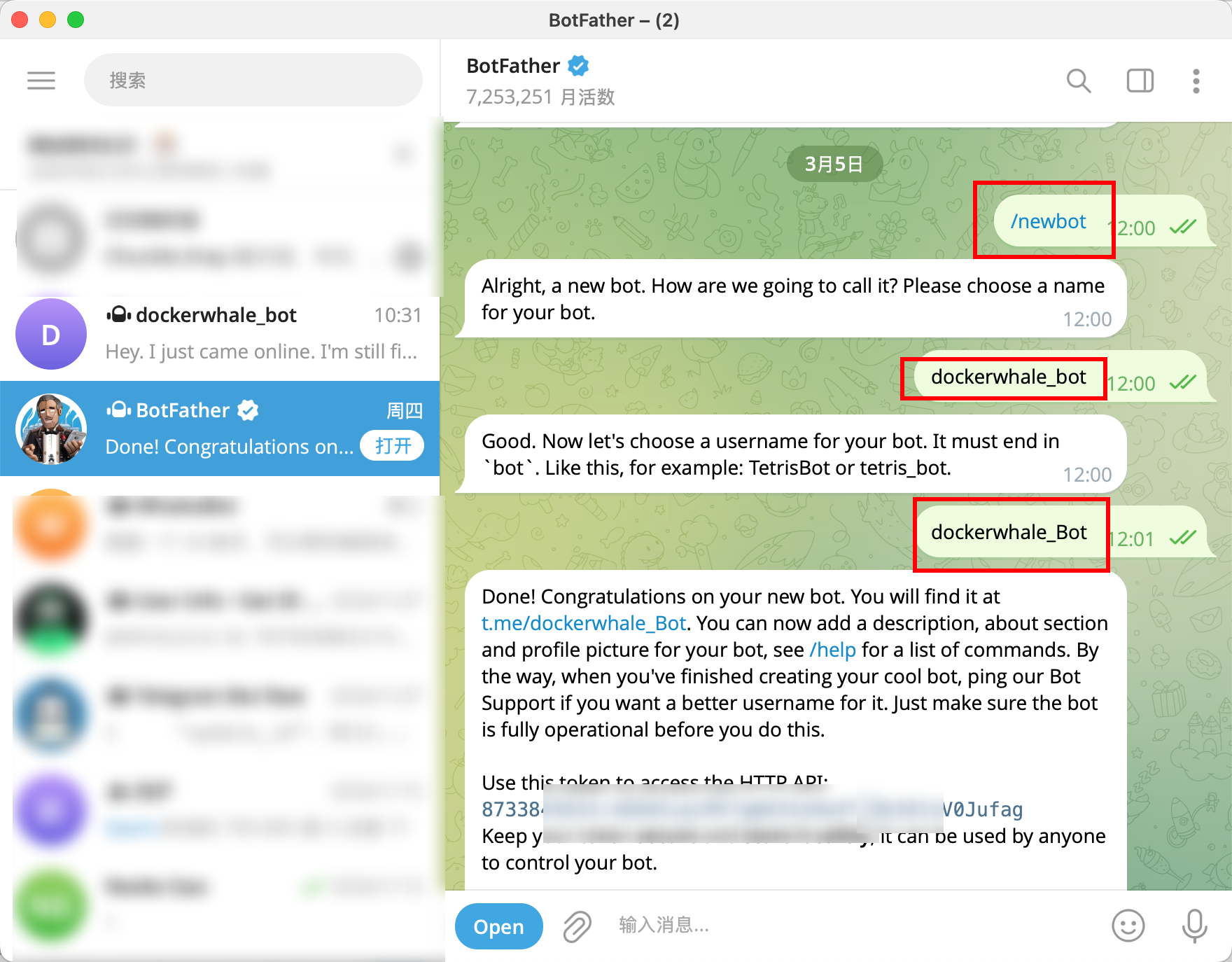
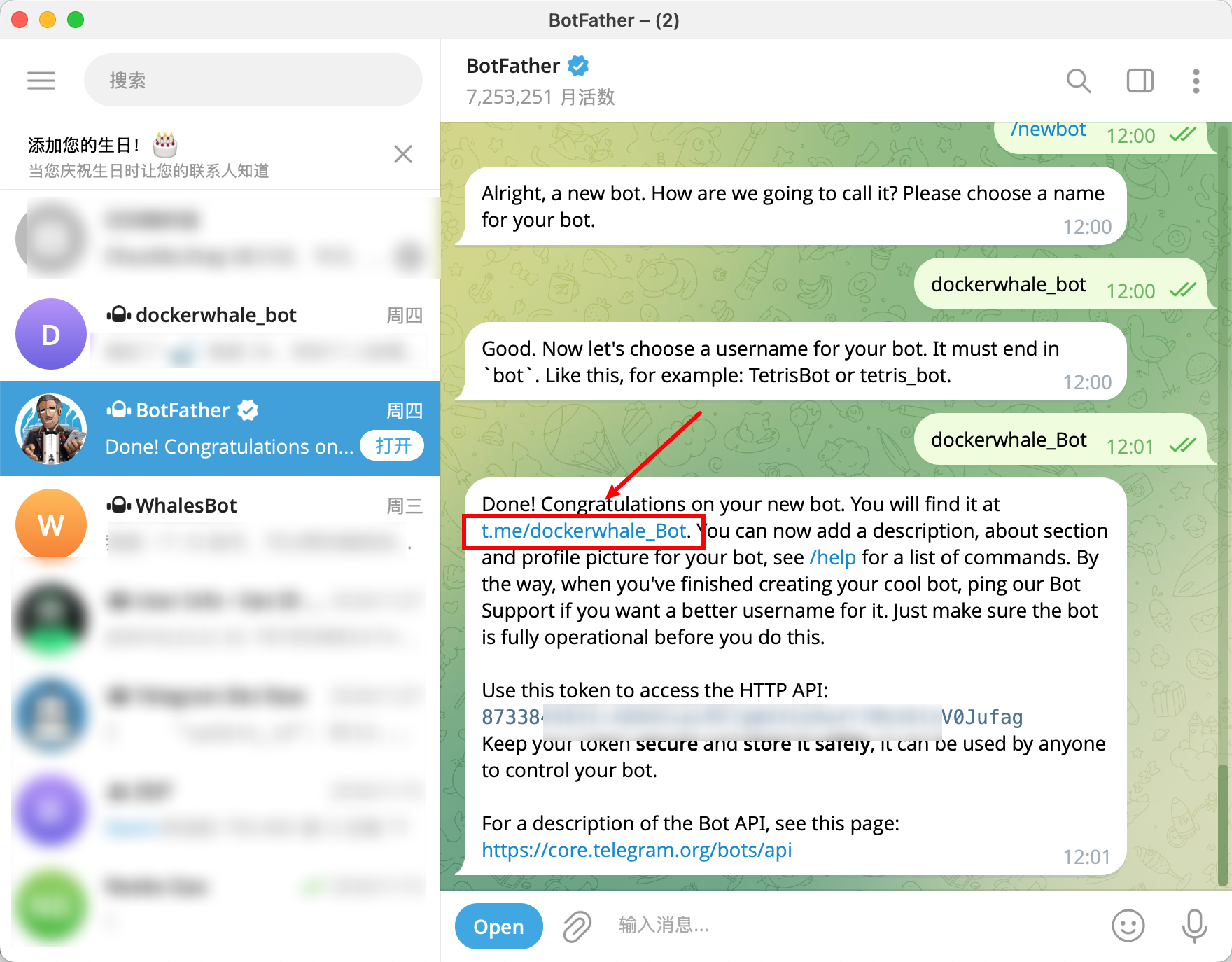
1. Search for @BotFather in Telegram and start a chat.

2. Send the command /newbot.
3. Follow prompts to set the bot's Name and Username.
4. BotFather will send you an API Token. Save this securely; you will need it for configuration.
Configure OpenClaw
The steps for organization are as shown in the table:
| Phase | Step | Action & Details |
|---|---|---|
| 1. Get Bot Token | 1.1 Create Bot | Open Telegram, search for @BotFather. Send /newbot. Follow prompts to set Name and Username. BotFather will send an API Token. Save it securely. |
| 2. Configure OpenClaw | 2.1 Start Config | Run: openclaw config |
| 2.2 Navigate Channels | Select Channels → Connect → Telegram | |
| 2.3 Enter Token | Paste the API Token from BotFather. Confirm to complete. | |
| 3. Enable Pairing Mode | 3.1 Security Strategy | Select Yes for default Pairing Mode. Select Pairing. Click Continue. |
| 4. Get Pairing Code | 4.1 Interact with Bot | In Telegram, search for your bot's Username. Start chat (click Start). Send any message. Bot will reply with a Pairing Code. Copy it. |
| 5. Finalize Pairing | 5.1 Approve in Terminal | Run: openclaw pairing approve telegram <Your_Pairing_Code> |
| 6. Test Connection | 6.1 Verify | Send any message to your bot in Telegram. Success: You receive a response from OpenClaw. |
Step-by-step with screenshots:
Open your terminal and run: openclaw config. Select local.

Select channels.
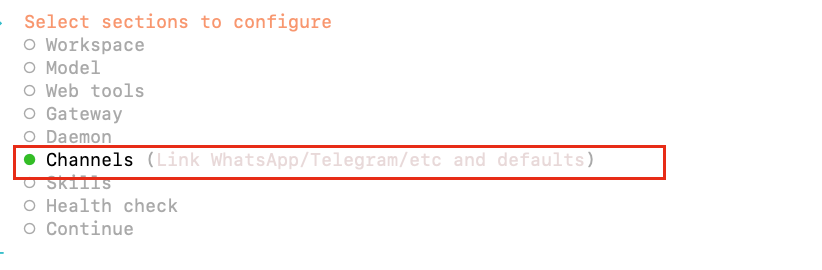
Select Connect.

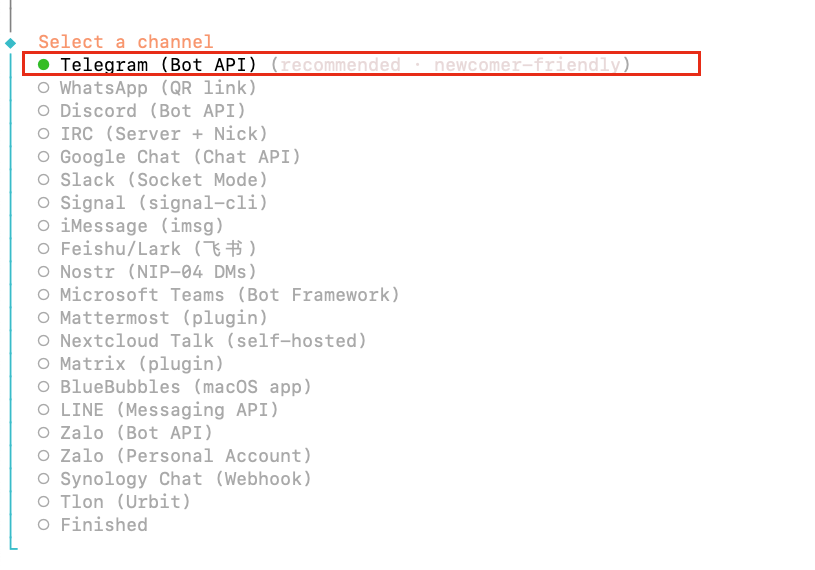
From the platform list, choose Telegram.
Paste the API Token you received from BotFather.
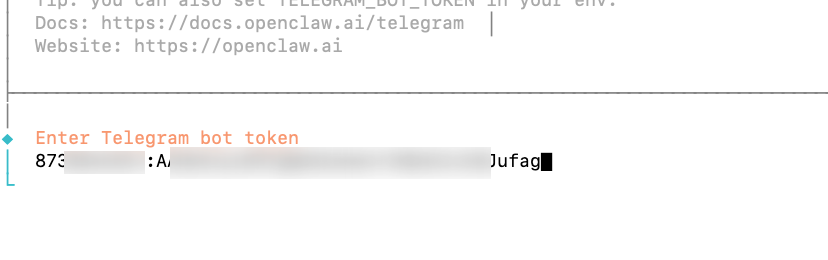
Confirm to complete.
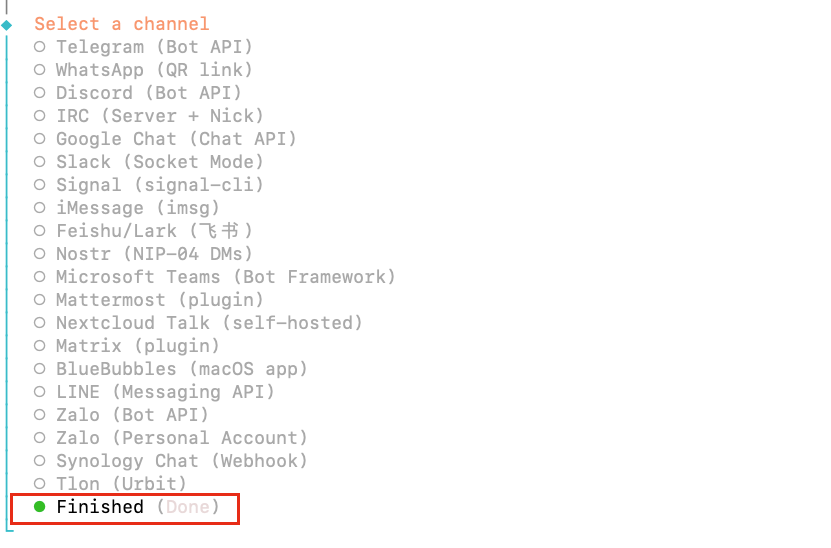
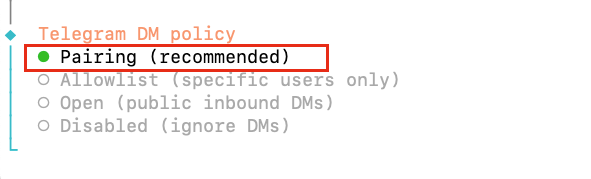
The system will ask about security strategies. Select Yes to use the default Pairing Mode.

Select Pairing.
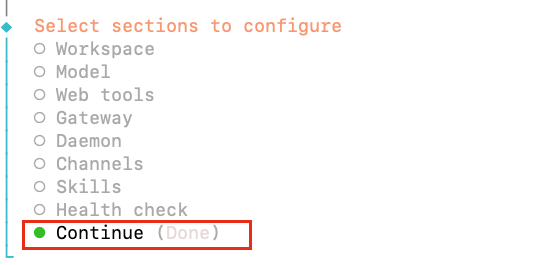
Click/Select Continue.
Go back to Telegram and search for the Username of the bot you just created. Click Start. Start a chat. Send any message to the bot.
The bot will automatically reply with a Pairing Code. Copy this code.
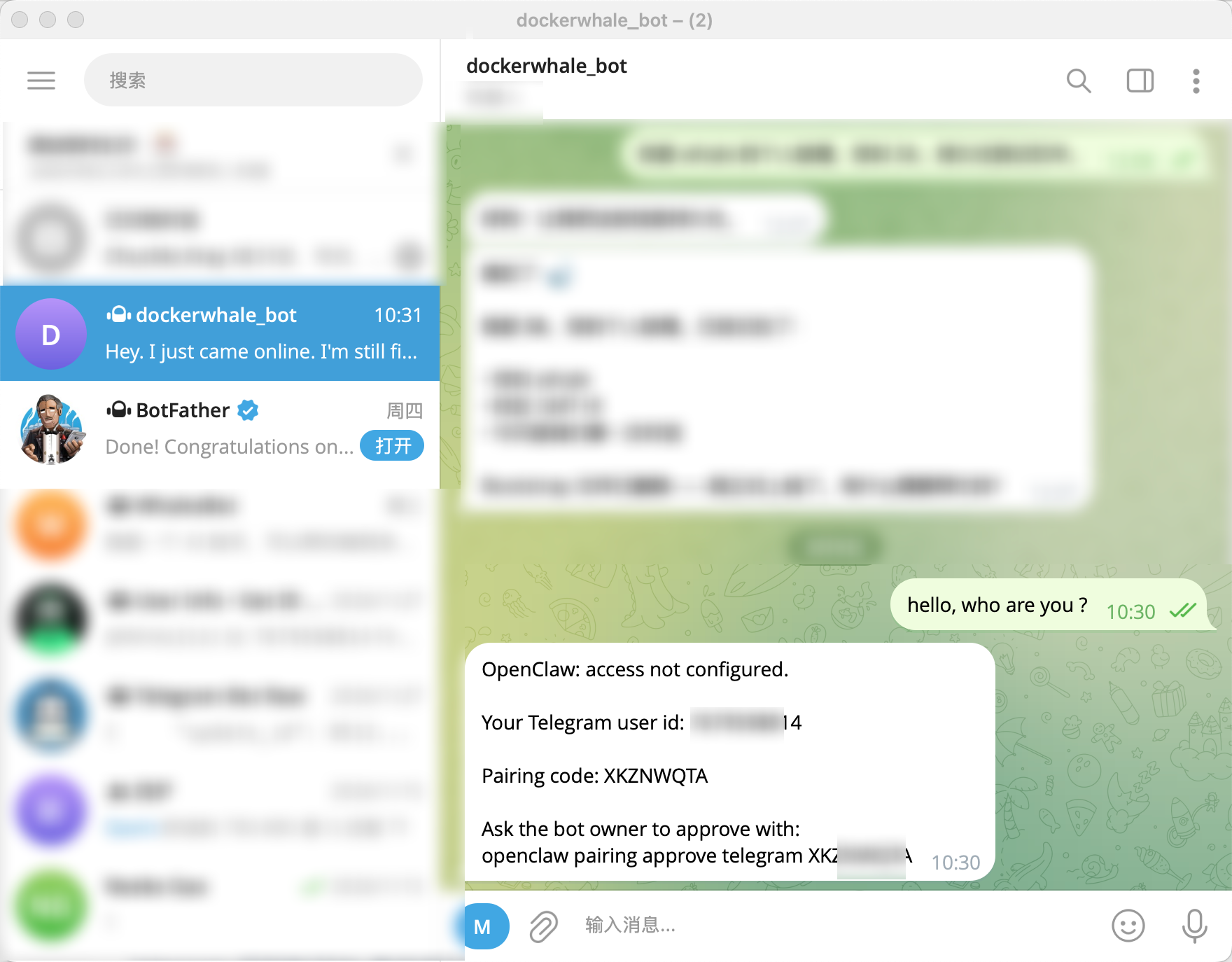
Return to your terminal. Run the following command, replacing <Your_Pairing_Code> with the code you copied:
openclaw pairing approve telegram ******
Test Connection
1. Go back to Telegram and send any message to your bot.
2. Success: If configured correctly, you will receive a response generated by OpenClaw.

Summary
You have now completed the setup of OpenClaw with the CloudWise MaaS platform and connected it to Telegram. You can freely invoke the AI assistant on this mainstream chat platform to handle tasks.
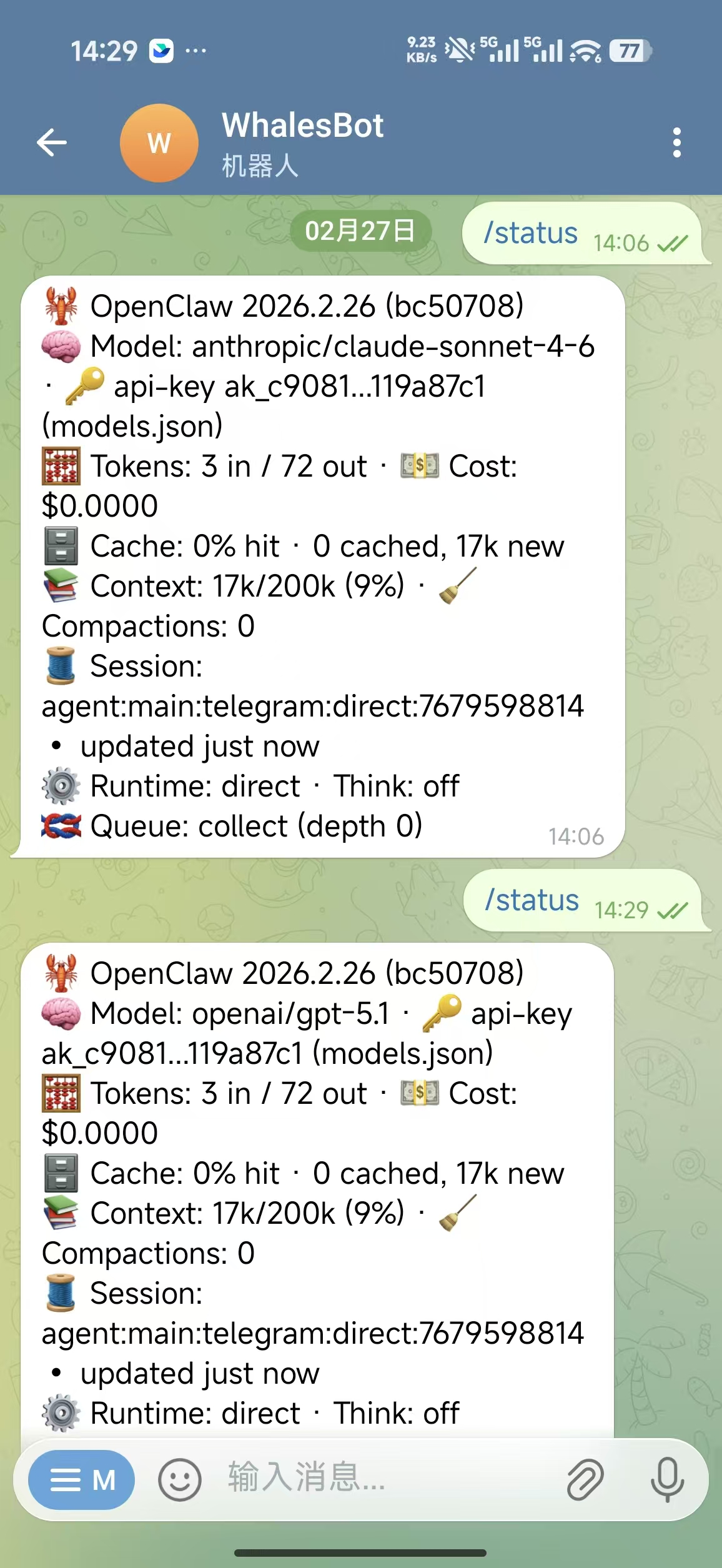
If you encounter any issues, verify that the Bot Token is correct and that the Pairing Code is still valid. Pairing codes typically expire; if expired, you will need to obtain a new one.