
TRAE IDE Quick Switch to Cloudwise MaaS
Add Cloudwise MaaS custom models to TRAE IDE's model manager — supporting both Anthropic-compatible and OpenAI-compatible endpoints in a few clicks
TRAE IDE allows you to configure custom third-party models alongside its built-in model library. By adding Cloudwise MaaS as a custom provider, you can use Cloudwise-hosted Anthropic, OpenAI-compatible, and other models directly inside TRAE's Builder and chat workflows.
Table of Contents
Prerequisites
| Requirement | Details |
|---|---|
| TRAE IDE | Installed and running on your system. |
| Cloudwise API Key | Create or copy your API key from Cloudwise Studio. |
| Anthropic Endpoint | https://api.cloudwise.ai/api/v1/messages |
| OpenAI-Compatible Endpoint | https://api.cloudwise.ai/api/v1/chat/completions |
Open Model Settings
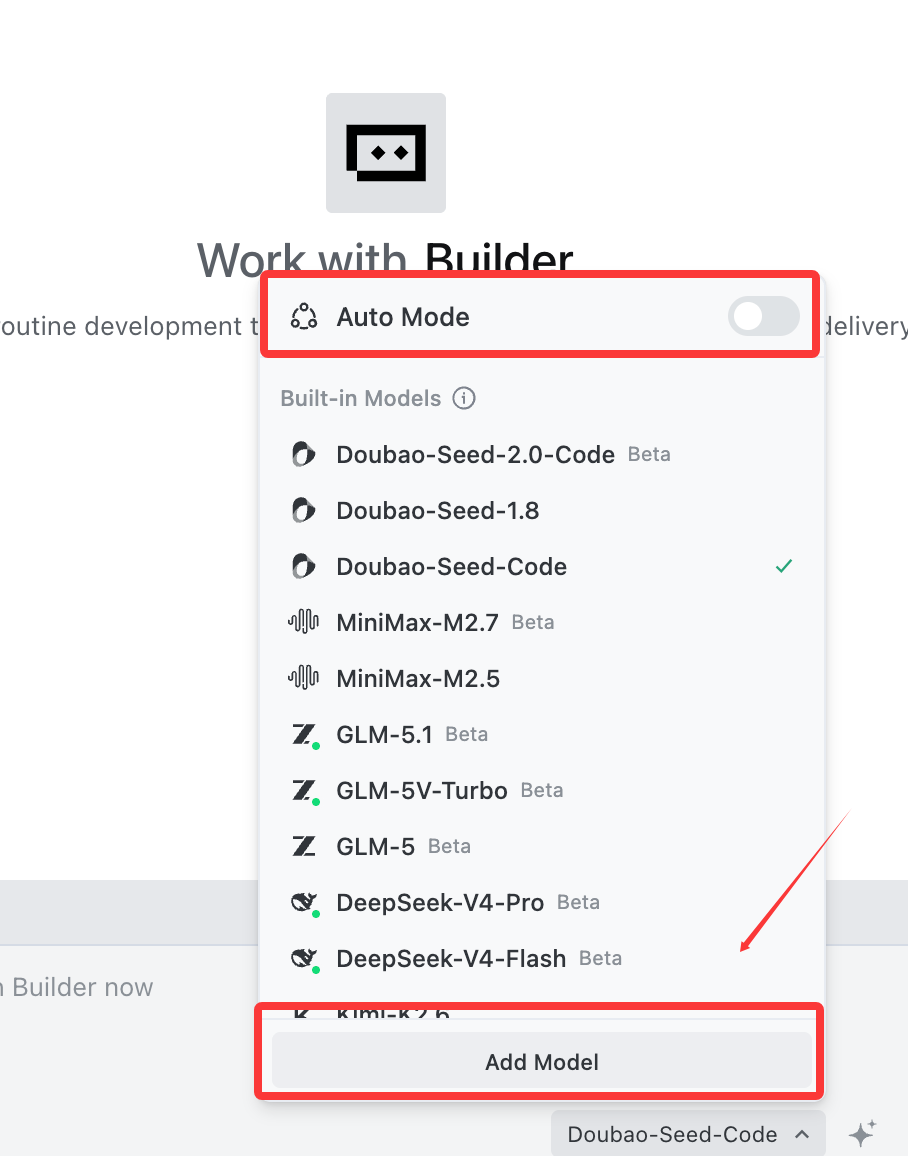
In TRAE IDE, open the settings panel and navigate to the Models section to manage built-in and custom models. Click the + Add Model button to start adding a new custom model.
The model management screen lists all currently available built-in and custom models. Click + Add Model (highlighted below) to open the model configuration dialog.
Add an Anthropic-Compatible Model
Cloudwise exposes Anthropic models through a Messages API endpoint. Configure the model as shown below.
In the Edit Model dialog, choose Anthropic as the provider, set the model type to Custom Model, and enter the values from the table below.
| Field | Value |
|---|---|
| Provider | Anthropic |
| Model Type | Custom Model |
| Model ID | claude-opus-4-7 |
| API Key | Your Cloudwise API key |
| Custom Request URL | https://api.cloudwise.ai/api/v1/messages |
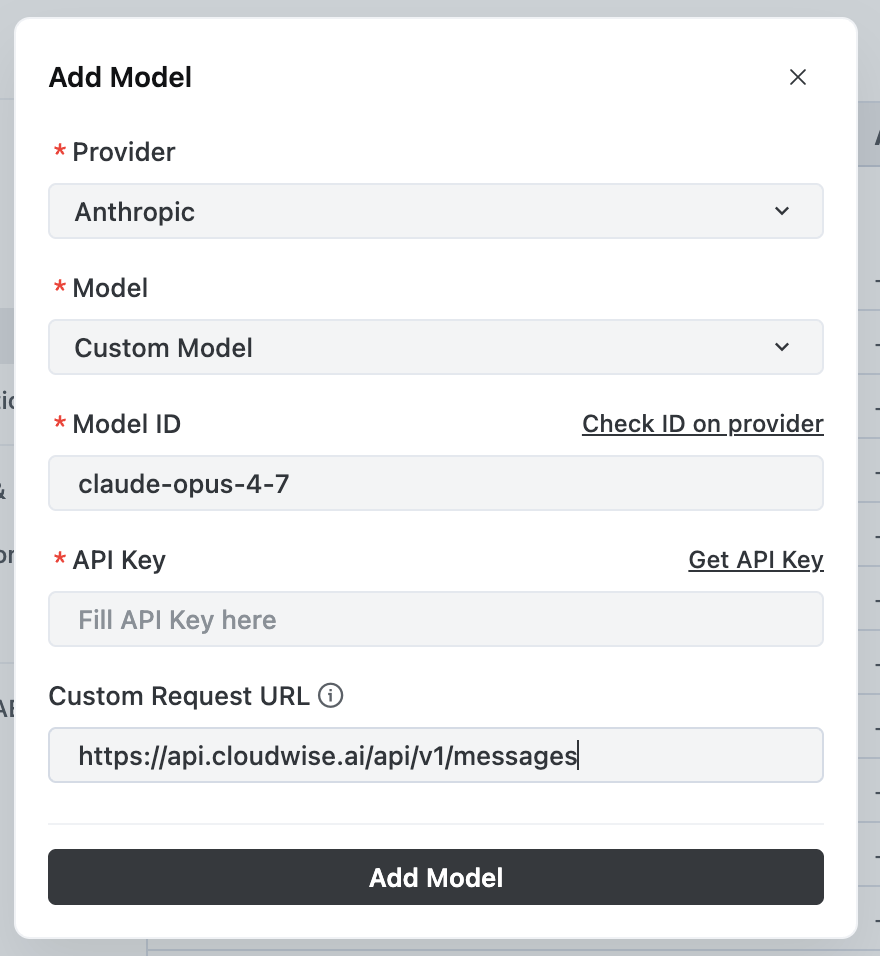
You can look up the exact model IDs available under the Anthropic section of the Cloudwise API Reference. The screenshot below shows the supported Claude models and the confirmed POST endpoint.
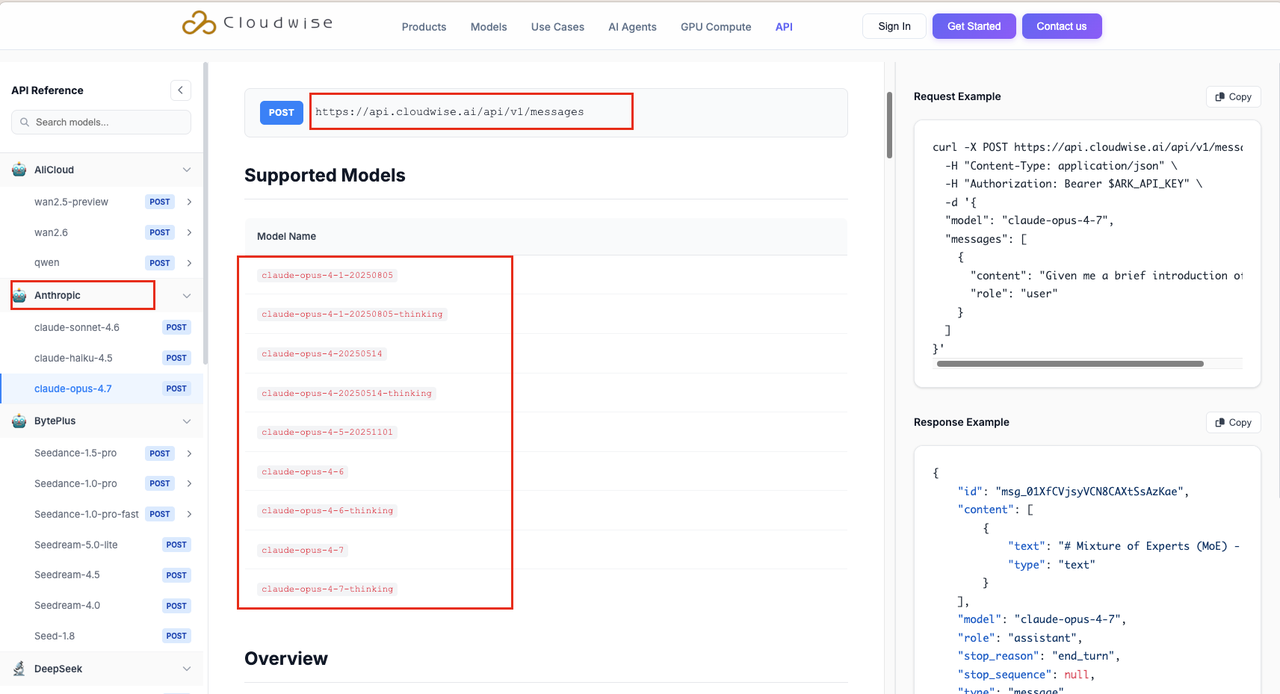
The Cloudwise Anthropic endpoint uses the /api/v1/messages path, matching Anthropic's native Messages API. Supported models include claude-opus-4-7, claude-opus-4-6, claude-sonnet-4.6, claude-haiku-4.5, and more.
Supported Anthropic Model IDs
| Model ID | Description |
|---|---|
claude-opus-4-7 | Latest Claude Opus — highest capability |
claude-opus-4-7-thinking | Extended thinking variant |
claude-opus-4-6 | Claude Opus stable release |
claude-sonnet-4.6 | Fast and balanced Claude model |
claude-haiku-4.5 | Lightweight and low-latency |
Add an OpenAI-Compatible Model
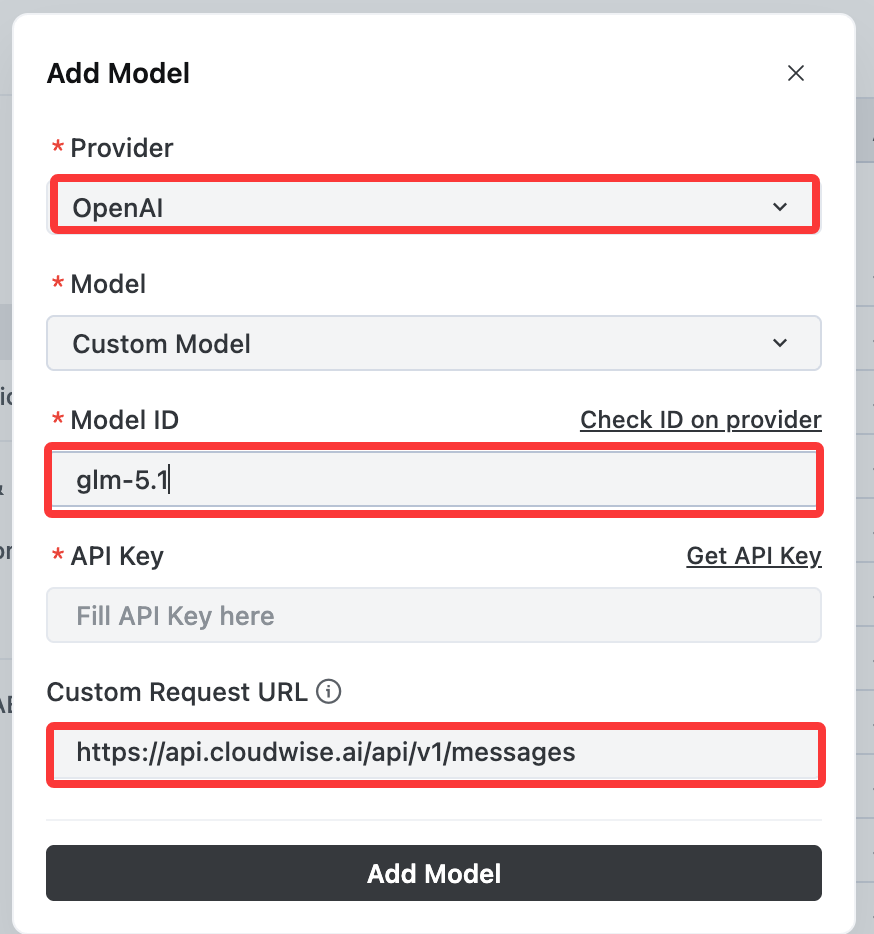
For OpenAI-protocol models such as GLM, GPT, and other vendors, use the OpenAI provider with the chat completions endpoint.
Click + Add Model again. In the dialog, choose OpenAI as the provider and fill in the fields below.
| Field | Value |
|---|---|
| Provider | OpenAI |
| Model Type | Custom Model |
| Model ID | glm-5.1 |
| API Key | Your Cloudwise API key |
| Custom Request URL | https://api.cloudwise.ai/api/v1/chat/completions |
Browse the GLM-5.1 (or other vendor) page in the Cloudwise API Reference to confirm available model IDs and the correct endpoint path before configuring TRAE.
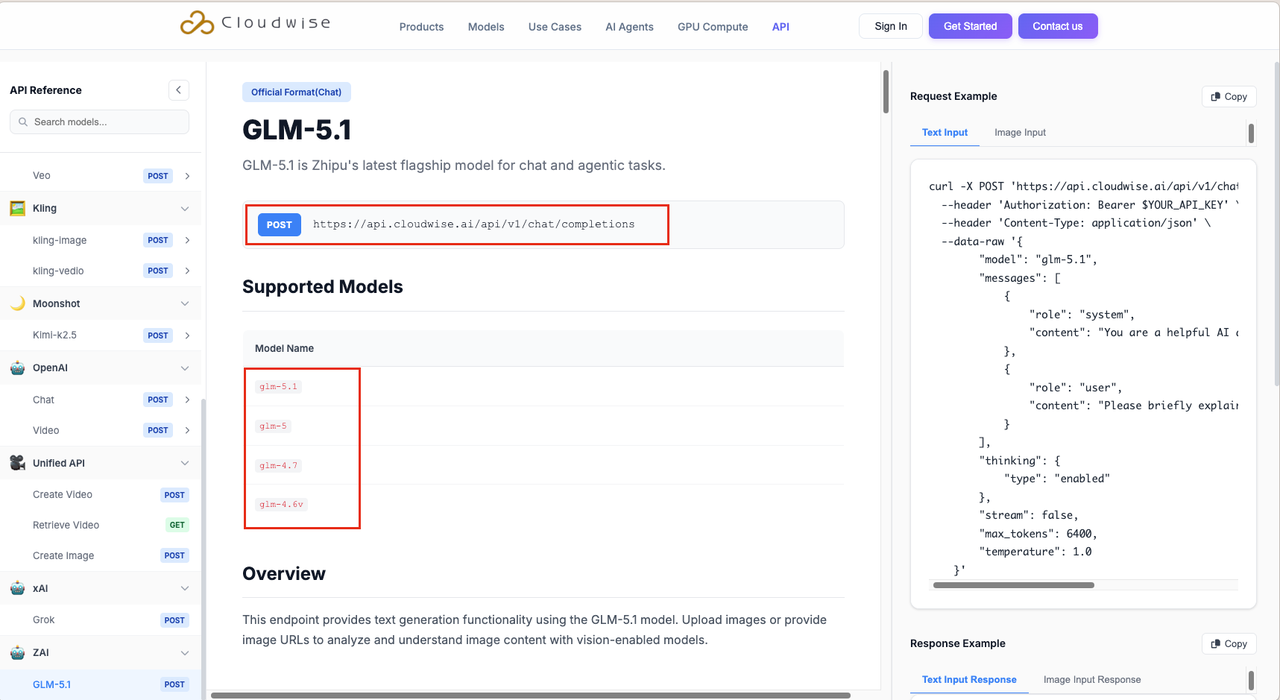
Any model that follows the OpenAI Chat Completions protocol can use the same /api/v1/chat/completions endpoint. This includes GLM, GPT, Gemini, Grok, DeepSeek, and many others available on Cloudwise MaaS.
Important: Use the exact Custom Request URL shown above. For Anthropic models use /api/v1/messages; for all other OpenAI-compatible models use /api/v1/chat/completions. Mixing these up will result in API errors.
Suggested OpenAI-Compatible Model IDs
| Model ID | Use Case |
|---|---|
glm-5.1 | Zhipu's latest flagship for chat and agentic tasks |
gpt-5.4 | Advanced GPT model for complex reasoning |
gpt-5 | Balanced general-purpose coding and reasoning |
gpt-4o | Fast multimodal interactions |
deepseek-r2 | Open-source reasoning champion |
Switch Model in Builder
Once your custom models are saved, you can see all of them listed under the Custom section in the TRAE model management page.
After adding both Anthropic and OpenAI-compatible models, verify they all appear in Settings → Models under the Custom section with their toggles enabled.
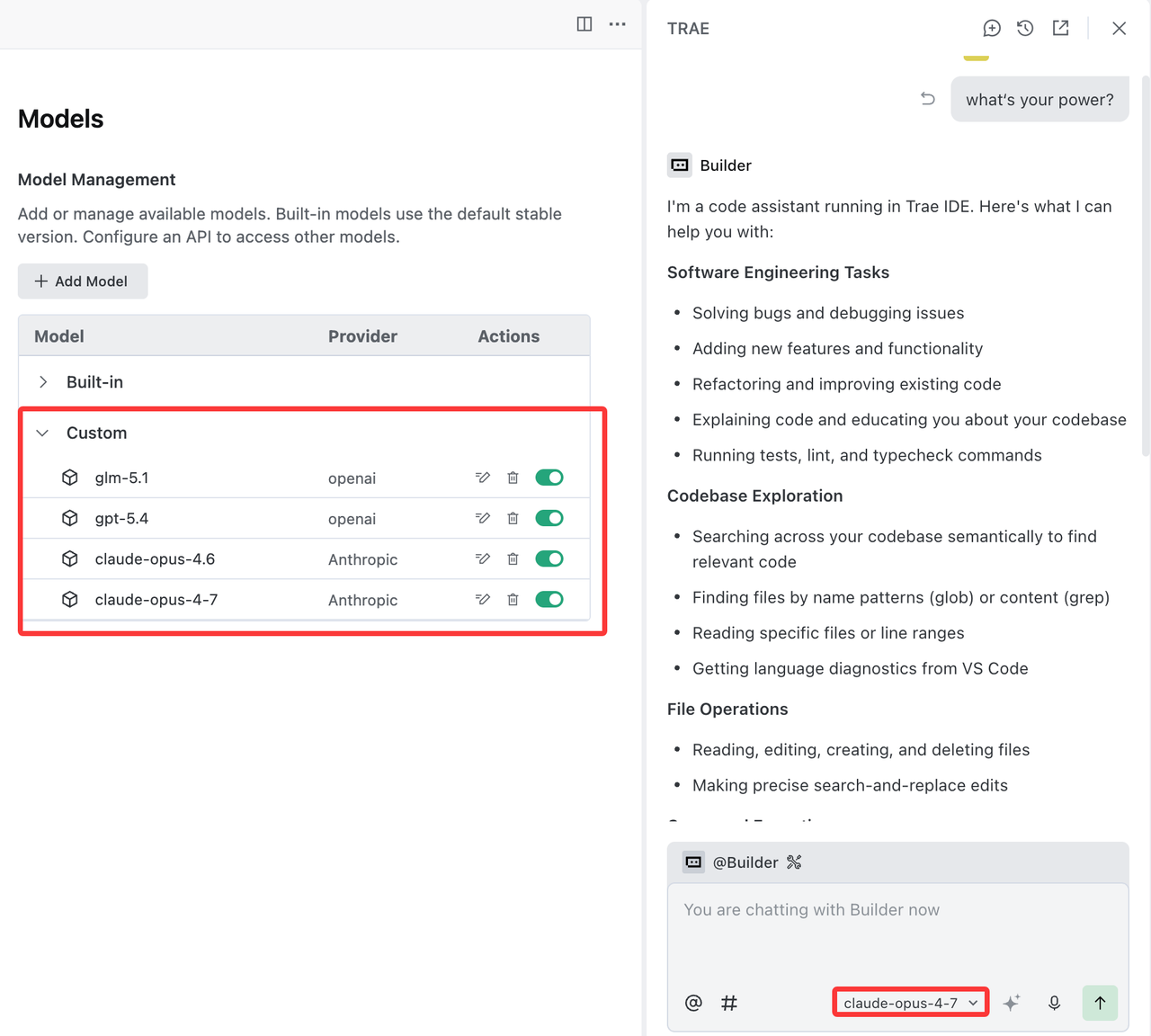
Open a chat or Builder session in TRAE. Click the model selector at the bottom of the chat panel, then choose your newly added Cloudwise model from the Custom section of the dropdown.
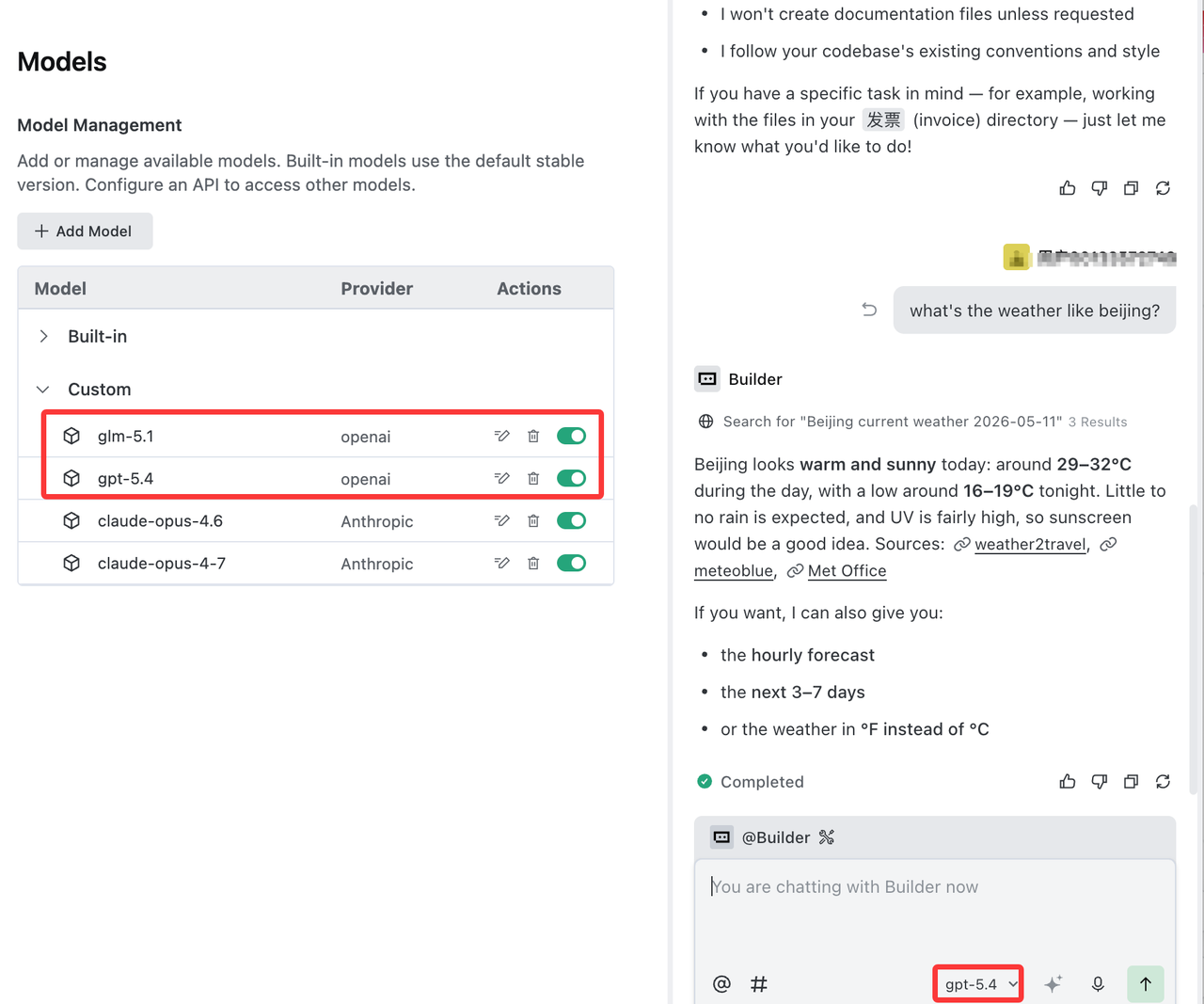
All custom models appear under the Custom section in the model picker. Built-in TRAE models (Gemini, Kimi, Grok) remain available and unaffected by adding custom models.
Summary
You now have a complete English setup flow for TRAE IDE with Cloudwise MaaS:
- Open Settings → Models in TRAE IDE
- Click + Add Model and select Anthropic provider for Claude models — use endpoint
https://api.cloudwise.ai/api/v1/messages - Click + Add Model again and select OpenAI provider for GLM, GPT and other models — use endpoint
https://api.cloudwise.ai/api/v1/chat/completions - Enter your Cloudwise API key and the correct model ID in each dialog
- Switch to a Cloudwise model in any Builder or chat session to start using it